
Here’s a simple, step-by-step guide to help you understand how to connect an Ethernet cable—whether you're setting up a wired internet connection for a computer, smart TV, gaming console, or other device.
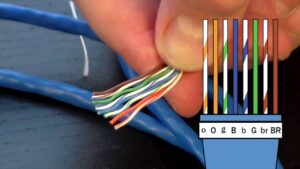
how to connect a ethernet cable
🧰 What You’ll Need
-
Ethernet cable (Cat5e, Cat6, or Cat7 are common)
-
Router or modem with an available Ethernet port
-
Device that has an Ethernet port (e.g., laptop, desktop, smart TV, gaming console)
🔌 Step-by-Step: How to Connect an Ethernet Cable
1. Locate the Ethernet port on your device
Most Ethernet ports look like a slightly larger phone jack (RJ-45 port). You’ll find them on:
-
Laptops (mostly older models)
-
Desktop PCs
-
Smart TVs
-
Gaming consoles (like Xbox or PlayStation)
-
Network switches
💡 If your laptop doesn’t have an Ethernet port, you can use a USB-to-Ethernet adapter.
2. Plug one end of the Ethernet cable into your router or modem
-
Look at the back of your Wi-Fi router or modem
-
You’ll see several LAN (Local Area Network) ports
-
Plug the Ethernet cable into any available LAN port
3. Plug the other end into your device
-
Insert the other end into your device’s Ethernet port
-
You’ll feel a click when it locks into place
4. Check your connection
-
Most devices will automatically detect the wired connection
-
You should see:
-
Internet access icon change to a wired connection
-
A light indicator near the Ethernet port (blinking means active data)
-
✅ Why Use an Ethernet Cable?
-
Faster internet speeds
-
Lower latency (great for online gaming and streaming)
-
More stable connection (no Wi-Fi drops)
-
Better for large file downloads and uploads
🛠 Troubleshooting Tips
| Problem | Solution |
|---|---|
| No internet after connecting | Restart your router and device |
| Ethernet cable not fitting | Make sure it’s an RJ-45 connector, not a phone cable |
| Connection light not blinking | Try a different port or Ethernet cable |
| Still no internet | Update your device’s network drivers or settings |
🧠 FAQ
❓Do I need to turn off Wi-Fi?
No — but your device will usually prefer Ethernet over Wi-Fi automatically. You can also manually turn off Wi-Fi to force it.
❓Can I use Ethernet and Wi-Fi at the same time?
Yes, on some devices — but Ethernet typically takes priority.
❓Is Ethernet faster than Wi-Fi?
In most cases, yes. Ethernet provides a more consistent and faster connection, especially for gaming and streaming.
🧩 Bonus Tip: Using Ethernet in Multiple Rooms
If your router is far from your device, consider using:
-
Powerline adapters: Send internet signal through your home’s electrical wiring.
-
Ethernet wall jacks: If your home is pre-wired for networking.
-
Longer Ethernet cables (up to 100 meters without signal loss)
🔚 In Summary
To connect an Ethernet cable:
-
Plug one end into your router/modem LAN port
-
Plug the other into your device’s Ethernet port
-
Enjoy a fast, stable connection — no extra configuration needed


2 comments
PAUL 12/24/2025
Please have a list of your 'how-to' articles on your web site! I found the article 'how to connect two computers with a LAN' on internet search, but it would be helpful if all of these articles were listed on your web site. Thank you.
Totcables 12/24/2025
you can search how to